How to extend Ubuntu partition while shrinking Windows one on dual-boot scenario
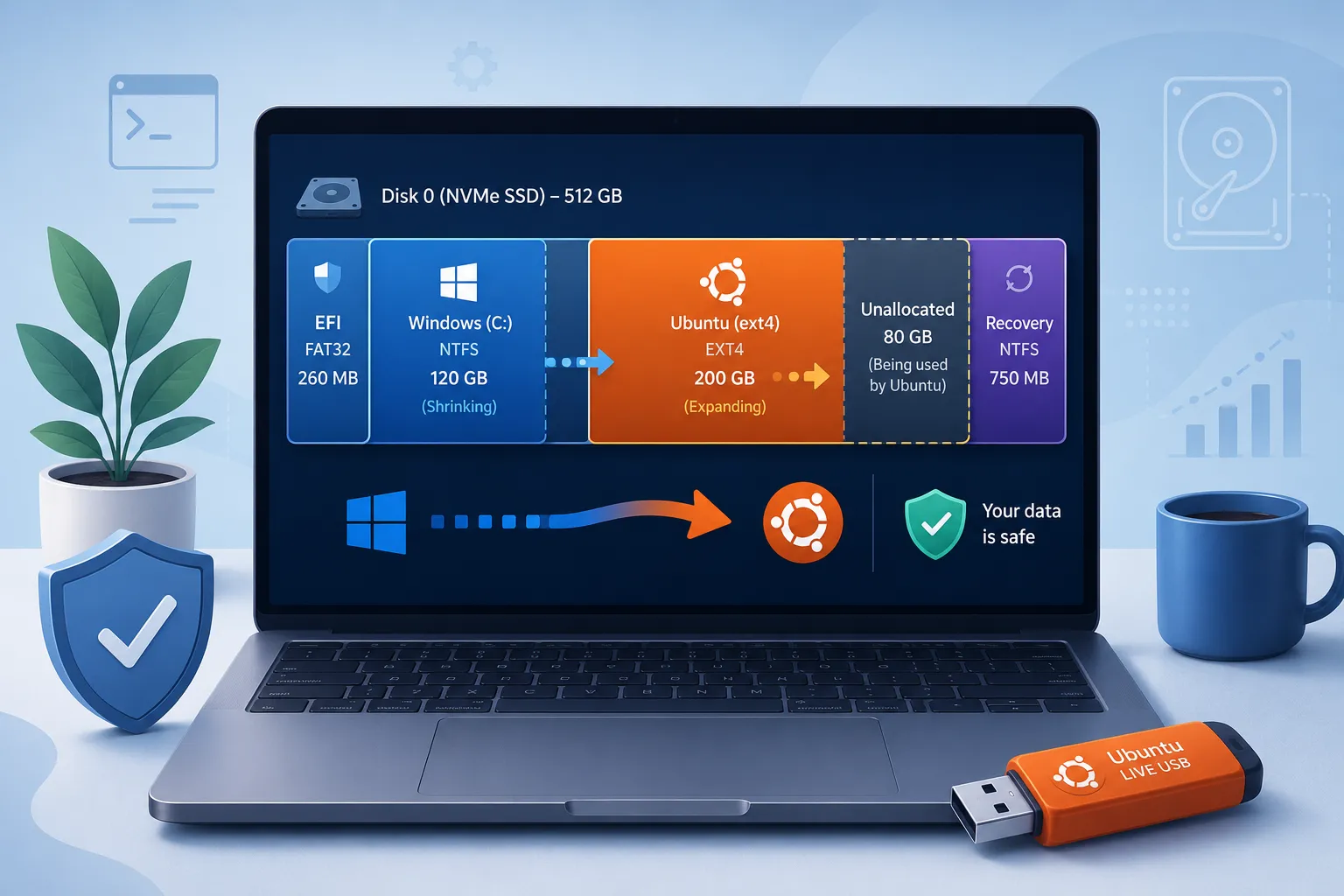
Introduction
I’ve a 500GB SSD with Windows and Ubuntu on dual boot. I almost never use Windows but when I installed Ubuntu alongside to it, I didn’t plan the size of the partitions carefully and Windows partition ended up to take more space than what it really needed.
So here a step by step tutorial about how to regain some disk space into your Ubuntu partition while shrinking the Windows partition, without reinstalling any OS or losing any file.
Note: you need a bootable USB version of Ubuntu to proceed.
Important notice: each scenario can be very different, but nowdays with AI the process can adapted accordingly. So before following this guide blindly, I highly recommend you to give this prompt to your favorite AI:
I’ve Windows and Ubuntu installed on my laptop as dual boot, I want to expand the space of the Linux partition to have more space, tell me how can I do it step by step. Now I’m on Ubuntu, so tell me the commands you need to understand my current situation.
The last sentence is the important one, because we are actually asking the AI to “plan” the changes based on the current situation of your computer, before doing any action. In general, always start with the “plan mode” when using AI in similar cases, the output will be way more accurate.
My case is very linear and I think is the most common scenario, so I’d like to write it here.
Planning
Execute the following commands and give the full output to your AI so that the plan will be perfectly tailored to your current situation.
Show all disks and partitions:
lsblk -o NAME,SIZE,FSTYPE,TYPE,MOUNTPOINTS,UUID
Show partition table details:
sudo fdisk -l
Show filesystem usage:
df -hT
Show EFI and boot setup:
findmnt /boot/efi
Show the exact partition layout graphically:
sudo parted -l
Executing
- Backup very important data, just in case
- Boot from the bootable Ubuntu USB drive and select Try Ubuntu
- Open the Terminal (Ctrl+Shift+T) and run the following commands:
sudo apt update
sudo apt install gparted - Launch gparted with
sudo gparted - You should see your partitions here, my situation had
fat32       EFI
ntfs        Windows
ext4        Ubuntu
unallocated
ntfs Recovery- So I wanted to assign to Ubuntu the unallocated space. To do it right click the Ubuntu partition (ext4) and choose Resize/Move
- Use the graphical interface to move the right edge all the way to the right, consuming the unallocated space.
- Click Resize, then Click the green Apply button and wait some minutes.
- When the process is completed, reboot and voilà, space regained.
Thank you for reading.